|
–Geoff-Hart.com: Editing, Writing, and Translation —Home —Services —Books —Articles —Resources —Fiction —Contact me —Français |
You are here: Articles --> 2025 --> Naming and typing variables and mathematical symbols: Part 2
Vous êtes ici : Essais --> 2025 --> Naming and typing variables and mathematical symbols: Part 2
By Geoffrey Hart
Previously published as: Hart, G. 2025. Naming and typing variables and mathematical symbols: Part 2: Formatting variables. https://www.worldts.com/english-writing/498/index.html
In part 1 of this article, I explained how to choose variable names that were easy to type and easy to remember. In this part of the article, I’ll explain how to actually type the variables and apply the necessary formats.
All the single-value variables that I used as examples in the previous sections were italicized (e.g., E = Energy), whereas multi-value variables (e.g., Q = a Quantity matrix) were boldfaced. Letters that are not variables or matrices were not italicized. But how do you actually apply these formats when you type a variable’s name using your word processor?
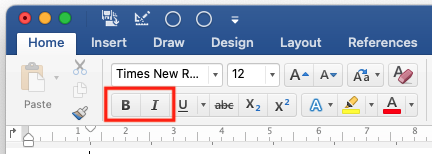
This is easiest if you’re using a European-language keyboard. In that case, you can apply italics by pressing Control+I before you start typing the variable name and by pressing Control+I again when you are finished. For boldface, press Control+B before you start typing the name and again when you’re finished. (If you’re using an Apple Macintosh computer, press the Command key instead of Control.) You can instead type the variable name first, then select the name and apply italics or boldface format using those keystrokes. Most word processors also let you select the format from a Format menu or a formatting tab in the ribbon of icons that appears at the top of the screen. In Microsoft Word, these formats are available in the Ribbon’s Home tab:
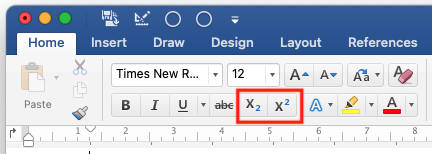
Similarly, you can type subscripts and superscripts from the keyboard. In Microsoft Word with a European keyboard, you can press and hold the Control key followed by the + key for a subscript and press and hold the Control and Shift keys followed by the + key for a superscript (exponent). Press this keyboard shortcut before you begin typing and again when you’re finished. As with italics and boldface, use the Command key instead of Control if you’re using an Apple Macintosh. These options are also generally available from a Format menu or from the toolbar at the top of the document. In Microsoft Word, these formats are available in the Ribbon’s Home tab:
Many word processors, including Microsoft Word, include an equation editor that lets you select equation types from a menu of options and then type variable names and numbers into the template that the equation editor provides. Although this is useful, it causes problems for journals whose computerized production system cannot understand these equations. In addition, papers that contain many such equations become “heavy”: the file size increases greatly, the screen display sometimes contains errors or becomes slow to display when you change pages, and the document becomes slower to navigate and less stable (i.e., there is a higher risk of a crash and loss of information). The author guidelines of these journals therefore ask you to not use the equation editor. This is true even for prestigious journals such as Nature, which ask authors to avoid using the equation editor for any equation that can be typed from the keyboard. Other prestigious journals, such as Science, ask authors to avoid using the current version of the equation editor built into Microsoft Word and to only use the version from 2007, which most authors no longer use. In such cases, authors often use the current equation editor, but submit their equations as graphics files.
Note: Variable names that are not part of equations, words such as “s.t.” (“subject to” or “such that”) and “thus”, as well as units of measurement, should not be typed using the equation editor. They should also not be italicized.
So how do you type equations from the keyboard?
Earlier in this article, I described how to apply italics, boldface, subscript, and superscript formats using the keyboard, a Format menu, or the toolbar (in Microsoft Word, the “ribbon”) at the top of a document. This works well for variable names and symbols that are present on the keyboard. For other symbols, it’s necessary to first find the symbols. Although most word processors offer an “insert symbol” function, it can be difficult to find many of the symbols. A better option is to use the comprehensive and well organized set of symbols in Math Unicode Entities provided by Penn State University.
Copy the symbol you need, paste it into your manuscript, then change the font to the same font and size that you’re using for the rest of the text (typically Times New Roman, but sometimes Cambria Math for equations). If you use specific symbols, variable names, or equations frequently, store them in a document named (for example) “Standard variables and equations”. You can then copy them from this document and paste them into new manuscripts instead of recreating them each time. If you include the definitions of all variables that appear in an equation in this document, you can also copy and paste the explanation of each variable rather than having to retype them when you use those equations again in a future manuscript. If it’s necessary to modify a variable, equation, or explanation, this approach is easier than having to retype the whole thing. (Of course, if you will reuse the new equation frequently, you should copy the whole equation into the “standard variables and equations” document so that it’s available to reuse in your next paper.)
One advantage of this approach is that all of your papers will use similar variable names, which makes it easier for readers to understand your math in new papers.
If you’re using Microsoft Word, the AutoCorrect feature makes it easier to type equations. This feature is similar to the software on your cell phone that automatically types full words for you after you type the first few letters or inserts the full character after you draw the first few strokes of characters in an Asian language such as Chinese or Japanese. Most word processors offer a similar feature, with different names and different details. In Microsoft Word:
Windows: File menu > Options > Proofing > AutoCorrect button.
Macintosh: Tools menu > AutoCorrect
Note: If you type a variable or equation and select it before you open the AutoCorrect dialog box, Microsoft Word automatically copies the text into the dialog box, and all you have to do is create a shortcut name that you will use. If you applied a format such as italics or subscript to parts of a variable name or equation, Word also offers the option to save it as formatted text, so you won’t have to manually reapply the format each time you type the shortcut:
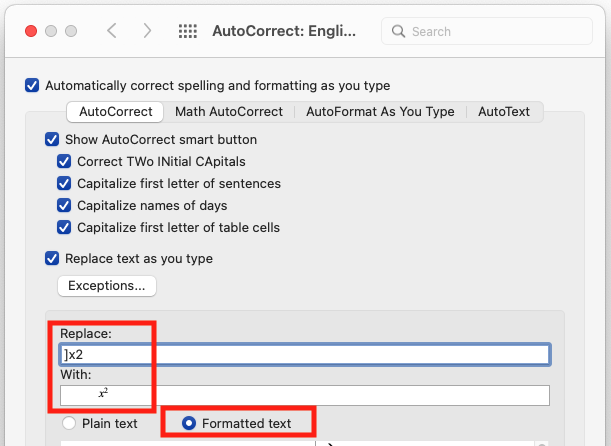
Look for the built-in shortcuts in the Math AutoCorrect tab of this dialog box. If you have difficulty remembering the shortcuts that Microsoft chose, you can create your own by editing the existing ones. The full text that you can access using these shortcuts is limited to about 256 characters in length, so if you need more space for complex equations, you can break such equations into multiple parts. For example, you could use ]GLMM1 and ]GLMM2 for parts 1 and 2, respectively, of a general linear mixed model.
For really large and complex equations, you can instead use Microsoft Word’s “building blocks” function. However, that function is poorly implemented, so I recommend that you copy the equations into a document named (for example) “standard variables and equations” that you create yourself. This makes the equations easier to find and reuse.
Names: Choose names that follow a consistent structure and relate directly to the quantity or property being measured by the variable so the names will be easy for readers to remember.
Italics: Italicize names for simple variables that have only one value at a time.
Boldface: Boldface matrix, vector, and set variable names for variables that store multiple values at the same time.
Non-variables: Don’t italicize letters that are reminders or explanations, or any symbol that is not a variable. (Thus, don’t italicize numbers or units of measurement.)
Subscripts: Subscripts are for explanations or memory aids.
Superscripts: Superscripts are for exponents and specific matrix functions.
Reuse variables: Store frequently used variable names and equation forms in a document where you can easily find them and copy them for reuse in a new manuscript.
Automatic text: Learn how to use your software’s AutoCorrect feature.
©2004–2026 Geoffrey Hart. All rights reserved.